


Cloud Storage: Cloud Drive App
4.21.20K Reviews
App Specs
- Version
- 1.9.0
- Updated On
- License
- Free
- Downloads
- 5,000,000+
- Developer
- Fazcon Apps
- Categories
- Productivity
- Platform
- Android, iOS
Screenshots
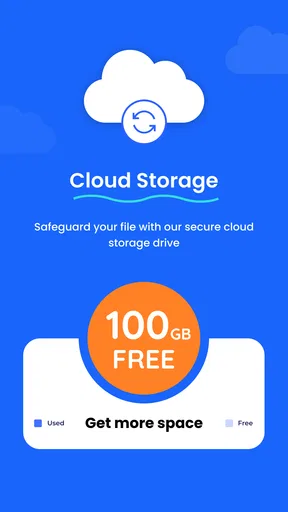
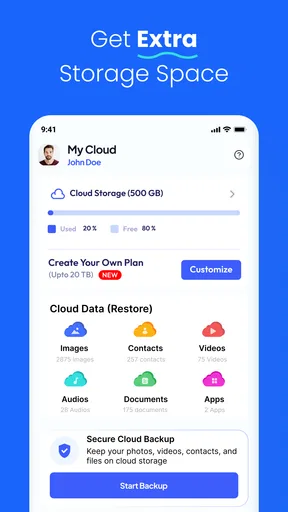
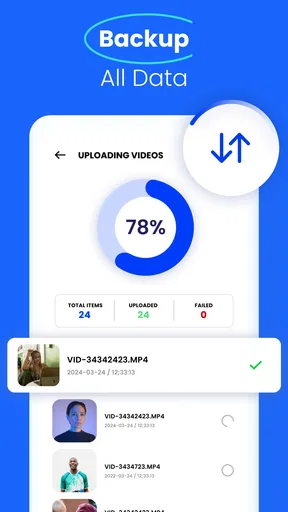

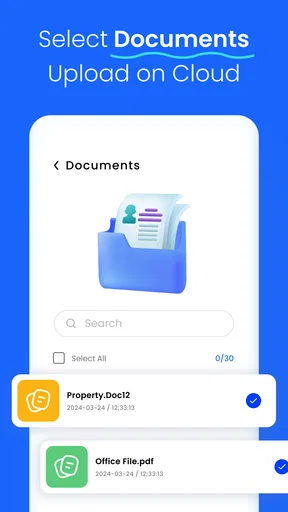


 Analysis by AppCompare
When I choose a cloud storage app, I’m not only asking how much it can hold. I also want to know what I’m trusting it with, how clearly I can manage my files, and whether it fits the way I already work. Cloud Storage: Cloud Drive App is a free productivity app from Fazcon Apps, aimed at keeping contacts and photos accessible through online storage. Its broad appeal is easy to understand, but I’d treat it as a practical storage option rather than a place to put sensitive material without first checking the choices available in the app.
What I’d check before moving personal files
Cloud storage can make a phone change or a full device much less stressful, but moving files online is still a decision about access and trust. Before uploading anything personal, I’d look through the app’s permission requests and consider whether each one makes sense for the task I’m doing. For example, access to photos may be relevant when selecting images to store; I would not grant permissions casually just because an app asks.
I’d also start with a small, low-sensitivity test rather than transferring an entire photo library or contact list straight away. That gives me a chance to see how the app handles the workflow and whether the available account and file controls suit me. A few everyday pictures are a safer trial than identity documents, private conversations, or work files that I cannot afford to lose.
Keep the first upload deliberate
My practical advice is to decide what belongs in cloud storage before tapping upload. Photos that I want to reach from another device are a natural starting point; confidential scans deserve more caution. I’d keep a separate copy of anything irreplaceable until I have confirmed that I can retrieve it when needed. Cloud access is convenient, but I wouldn’t treat one app as the only copy of important records.
Contacts call for a similar pause. They may look less sensitive than photos, yet an address book can reveal personal and professional relationships. If you only need a backup of a few numbers, a full contact transfer may be more than you need. If you do choose to store contacts here, review the app’s visible controls and your phone’s permissions first, and avoid assuming that a cloud copy replaces a dependable backup plan.
How I’d decide whether it fits
The app has an average rating of 4.3 from around 14,000 ratings, and it has passed five million installs. That shows plenty of people have tried it, but popularity alone doesn’t settle the trust question for me. I’d weigh those signs alongside my own experience with file access, account settings, and the clarity of the choices presented in the app.
It is free to install and rated for everyone. Optional in-app purchases range from $1.99 to $36.99 per item, so I’d check what a purchase covers before paying rather than assume every storage need is included at no cost. The app was released on March 1, 2021, and its current version is 1.6.7, with Android 7.0 as the minimum operating system requirement.
Worth Reading Before You Choose

EA SPORTS FC Mobile 26 Is a Bigger Football Game, but It Takes Time

Flipboard Shows What News Apps Must Do Beyond the Feed

Switching to Android Auto Means Rethinking Your Driving Routine

Google Calendar Makes a Crowded Week Easier to Manage

Ludo King Makes the Most of the Minutes Between Plans

Baby Panda World Brings Quick Play to Modern Phones, but Its Game Library Feels Busy
Getting Started with Cloud Drive
Let’s dive into the world of cloud storage with the Cloud Drive App. If you’re anything like me, you’ve probably found yourself juggling multiple devices and desperately trying to keep your files in order. Well, this app might just be the answer to those digital headaches. I’ve given it a whirl, and here’s what I discovered.
First things first, downloading the Cloud Drive App is a breeze. Available on both Android and iOS, it took just a couple of minutes before I was ready to dive in. Setting up an account was straightforward, and I was greeted with a clean, intuitive interface that didn’t require a manual to navigate. I love when an app doesn’t make me feel like I need a degree in computer science just to upload a file!
Features You’ll Love
Once inside, I was pleasantly surprised by the sheer range of features on offer. The app allows you to store a generous amount of data without constantly nudging you to upgrade to a paid plan—something my wallet appreciates.
Organizing files is a cinch. You can create folders, subfolders, and even color-code them for easy access. This is a game-changer for someone like me who tends to forget where I’ve stored important documents.
The file sharing feature is another highlight. You can share documents with others via a simple link, and it doesn’t require them to have an account to view. This is perfect for quick collaborations or sending over a large batch of photos to family members.
Performance and Usability
The app performs smoothly across devices; I tested it on both my smartphone and tablet. File uploads and downloads were quick, and even larger files didn’t seem to faze it. The synchronization feature worked flawlessly, ensuring that whatever I saved on one device appeared on the others in mere seconds.
One thing that stood out was the app’s security features. With end-to-end encryption, I felt confident that my files were safe from prying eyes. There are also options for two-factor authentication, adding an extra layer of security for those sensitive documents.
What Could Be Improved?
While the Cloud Drive App has a lot going for it, no app is perfect. I noticed that the offline access feature could use a little polishing. It works, but there were a few hiccups when trying to access partially downloaded files. It’s not a dealbreaker, but something to keep in mind if you often find yourself without an internet connection.
Another minor gripe is the lack of integration with some third-party apps. While it covers the basics, a few more options would make life a tad easier for professionals who rely on specific tools.
Choosing a sensible workflow
For a realistic routine, I’d use it as a destination for selected photos and documents rather than as an automatic dumping ground for everything on my phone. After a family gathering, I might sort the pictures I actually want to keep, place them in a clearly named folder, and share that folder’s contents with relatives. That keeps the upload purposeful and makes it easier to find the same pictures later instead of scrolling through an undivided archive.
For work, I’d separate materials by project and keep the cloud copy in step with a local copy of anything important. Folder names that include a client or project and a recognizable topic are more useful than vague labels such as “miscellaneous.” This small habit matters especially when sharing a file: I can check the folder before sending anything and reduce the chance of passing along the wrong document.
Sharing is convenient, but I’d treat a link as something to send intentionally, not as a permanent substitute for a controlled collaboration setup. Before forwarding one, I’d verify that it points to the right material and send it only to the intended people. For confidential work that needs detailed access rules, auditing, or a team’s established workflow, a dedicated business platform may be a better fit.
Where it sits among storage alternatives
Compared with the cloud drive already built into a phone or the familiar storage service tied to an email account, this app’s appeal is its focus on keeping photos and contacts in one place. That can suit someone who wants a straightforward extra destination instead of a larger ecosystem of office tools. The trade-off is that people who depend on deep integration with calendars, document editors, desktop file browsing, or workplace accounts may find their existing provider more convenient.
It is also different from simply backing up a phone. A storage app is useful when I want to choose files, arrange them, retrieve them, or share them; a device backup is designed to help restore a broader set of phone content. I would not assume that uploading selected items here replaces a full device backup. If your main concern is recovering an entire phone after loss or replacement, use the backup method built into your device as well.
For a person with a crowded camera roll, a useful first step is to upload a small batch, then search for and retrieve a particular image on another device before committing to a larger routine. That checks the part that matters in daily life: not merely whether an upload finishes, but whether the stored item is easy to locate again. If the arrangement feels awkward, adjust your folder scheme before the library grows.
Who should use it—and who may prefer something else
I can see this working well for someone who wants a simple place for selected photos and contact storage, shares pictures with family, and does not need a complex work collaboration suite. The uncomplicated folder approach is especially helpful if your files are scattered across devices and you are willing to keep their organization tidy yourself.
I’d hesitate if you need a clearly documented, tightly managed system for confidential records, or if you expect every app you use to connect directly to your storage. People who work with sensitive client information should follow their organization’s approved tools and policies rather than move files into a personal service for convenience. Likewise, if you are usually offline, cloud access is not a substitute for keeping the files you need available on the device.
A sensible way to decide is to try one ordinary task first: store a few non-sensitive images, then retrieve them and share one with someone you trust. Notice whether the available choices feel clear and whether the result fits your routine. If you find yourself unsure what a setting does or who can reach a shared item, pause and keep that content elsewhere until you are comfortable.
Final Thoughts
All in all, the Cloud Drive App is a solid choice for anyone looking to streamline their digital storage needs. It’s user-friendly, feature-rich, and doesn’t demand a hefty subscription fee to be useful. Whether you’re storing personal photos or important work documents, this app offers a reliable solution.
So, if you’re ready to declutter your digital life, give the Cloud Drive App a try. You might just find it becomes an indispensable part of your daily routine, just like it did for me.
Pros
- Easy file sharing with others.
- Supports multiple file types.
- Automatic backup feature.
- Cross-device synchronization.
- User-friendly interface.
Cons
- Limited free storage space.
- Requires internet for access.
- Some files upload slowly.
- Occasional app crashes.
- Premium features are costly.
FAQs for Cloud Storage: Cloud Drive App
What are the main features of the Cloud Drive App?
The Cloud Drive App offers secure file storage, easy file sharing, and seamless synchronization across devices. Users can upload photos, videos, and documents, and access them from any device with internet connectivity. The app also provides collaborative tools, allowing multiple users to work on files simultaneously, with features like version history and automatic backups.
Is the Cloud Drive App secure for storing sensitive data?
Yes, the Cloud Drive App uses advanced encryption methods to ensure the security and privacy of your data. All files are encrypted both in transit and at rest, with additional security measures like two-factor authentication available. Regular security updates and audits help maintain a robust defense against unauthorized access.
How much storage space do I get with the Cloud Drive App?
The Cloud Drive App offers a range of storage plans to suit different needs. Users can start with a free tier offering a limited amount of space, perfect for storing essential files. Paid plans are available with larger storage capacities, allowing users to upgrade as needed to accommodate more data.
Can I access my files offline with the Cloud Drive App?
Yes, the Cloud Drive App provides offline access to files. Users can select specific files or folders to be available offline, ensuring important documents are accessible even without an internet connection. Any changes made offline will automatically sync once the device reconnects to the internet.
What should I do if I encounter issues with the Cloud Drive App?
If you experience any problems with the Cloud Drive App, there are several support options available. First, check the app's Help Center for troubleshooting guides and FAQs. If further assistance is needed, users can contact customer support through email or live chat for personalized help.


